.png)
24Planning allows you to customize the fields that are shown in event details, as unplanned event columns, as resource columns or in the Gantt Chart. This customization can entail hiding default fields are adding new ones. This is accomplished via the concept of Dynamic Fields.
Dynamic fields are fields that will be shown in the event details (for planned events) or as columns in the sidebar (for unplanned events) or in the left pane for Resource Planning or Gantt Chart.
When you create a new datasource, 24Planning will generate by default a number of dynamic fields for configuration fields of the datasource:
-
colorReference
-
parentIndex
-
predecessor
-
dataSource
-
percentDone
-
duration
-
totalDuration
-
EndDate__c
-
StartDate__c
-
resources
-
Subject
-
Name
These dynamic fields definitions also specify the sort order.
In case you want to hide some of these standard dynamic fields, use the checkbox Hidden. To show these dynamic fields only in specific places (e.g. in unplanned events only) first use the Hidden checkbox on the default dynamic field and then create a new dynamic field that specifies where you want to show the field and that will override the default config.
Pro Tip: In case you are combining multiple Datasources in one Dataset and want to hide default columns in Unplanned Event, it sufficient to do this on one Datasource only, provided that field has the highest Order.
Obviously, you can also create extra dynamic fields to show additional info required for appropriate planning.
You can configure the following parameters:
-
Field Reference: API name of the field that should be added as a dynamic field.
-
Read Only: Specifies whether this field is editable in the planning board.
-
Type: select whether this dynamic field should be shown for planned events, unplanned events, resources (in the left pane for resource planning) or in the Gantt Chart left pane. Note that lookup dynamic fields are supported only for events (not for unplanned events, resources or Gantt Chart left pane).
Ordering and Sorting
-
Order: determines the order in which the dynamic fields are shown.
-
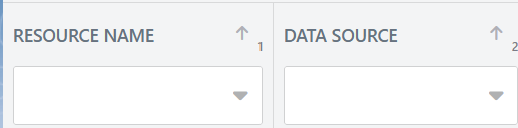
Sorting: determines the sorting order for unplanned events (right-hand-side pane) and resources (left-hand-side pane). When multiple sorting fields are active at the same time, the higher number will be the first sorting criterion. In the example below, the left-hand-side is first sorted according to the resource name and then according to the datasource, note the 1 and 2.
Grouping
It is also possible to apply grouping in the left pane.
In the example below, we group based on the datasource:
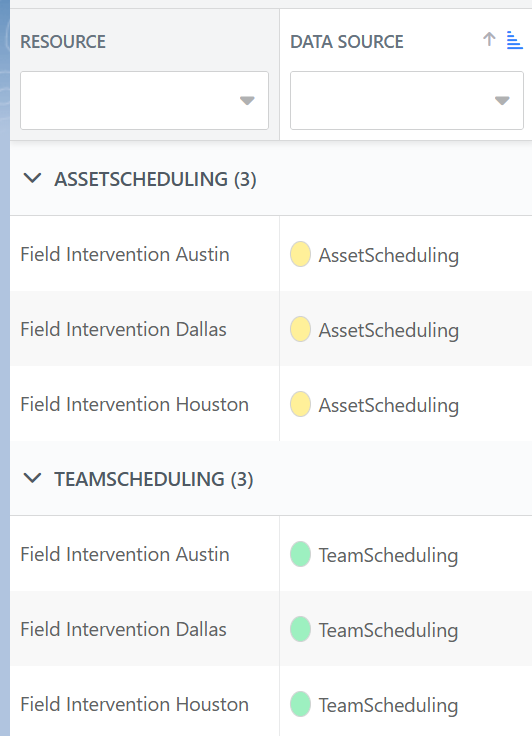
To configure grouping, you need to set the following fields within the Dynamic Fields definition:
-
Group: Checkbox, when checked grouping will be applied on this Dynamic Field.
-
Grouping: Numeric value. Grouping can only be applied on one field, and the field with the highest numeric value will be the field chosen.
-
Group sort direction: Ascending or descending.
In some case you will want to work with multiple datasources in the same dataset. When you define dynamic fields for multiple of these datasources, 24Planning will ‘merge’ the fields from different datasources if these are the same field field of the same object.
The behaviour of 24Planning is as follows:
-
Unplanned Events: the field with the highest order will be used. This means if the config of read-only, hidden, … is different between the two datasources the dynamic field config with the highest order will be used to display the column.
-
Event Filter: same applies as for unplanned Events.