.png)
It is possible to create a view-only 24Planning view.
Please proceed as follows:
-
Navigate to Setup > App Manager and select to the app for which you want to add a read-only planning view.
-
Select Page , New Page, App Page and give the page a label.
-
Drag-and-drop the 24Planning component onto the canvas. Select it and check the View Only checkbox in the right panel.
-
Save and Activate the page.
-
Verify that the page is added to your app.
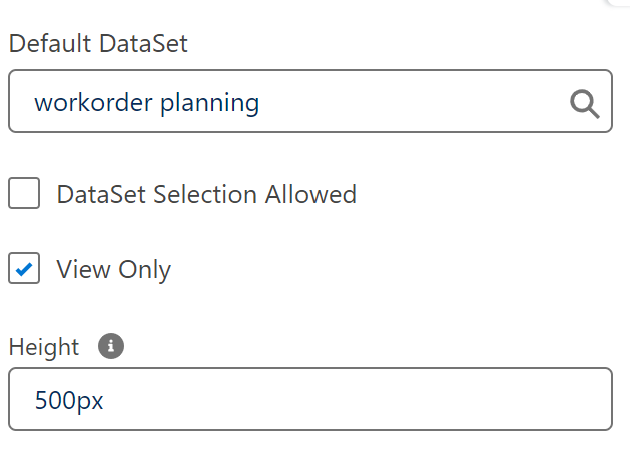
The view-only Planning view has the following configuration options:
-
Default DataSet: the dataset that is shown when opening the record page
A pinned dataset will overrule the Default DataSet selected.
-
DataSet Selection Allowed: when unchecked, users will not be able to switch between datasets.
-
View Only: when checked, users will only be able to open 24Planning in a view-only mode.
-
Height: the height of the component. This can be expressed in pixels (e.g. 1000px) or relative to the screen height (e.g. 78vh (78% view height)).
View-only users also need a 24Planning license.