.png)
Capacity View
When planning events against resources, you may want to take into account the workload or occupancy rate of your resources. This is exactly what the capacity view does.
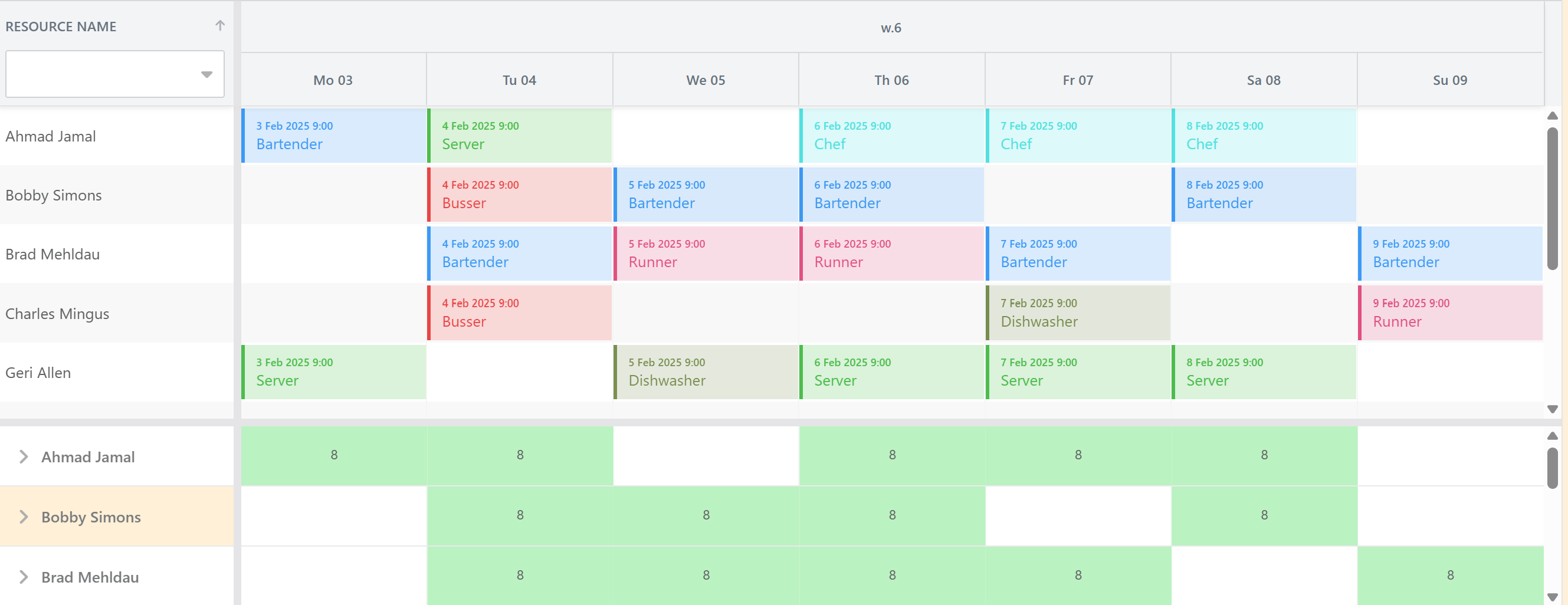
You can add a capacity view both to the Gantt Chart and the resource view. The capacity can be represented either as a ‘histogram’ or a numerical value.
The above screenshot shows the capacity view as a separate panel. Alternatively, it can be shown inline with the resource. For Gantt data sets, only the Panel location makes sense.
You can define occupation and capacity the way you want via a custom field. If it is left empty, the occupation will be computed based on the duration of tasks.
More information on the dataset configuration for capacity can be found here.
Skill Matching
24Planning supports a framework for validating the assignment of events to particular resources. I.e. the events may require specific properties of a resource and you can validate whether resources have these matching properties. In case there is no match, the event cannot be assigned to the resource.
One obvious application of this framework is skill matching where certain tasks (events) require a particular skill set of the person (resource). With the validation framework, planners will not be able to assign tasks to people that do not have the appropriate skills.
The framework is not limited to one property only, i.e. an event could require multiple resource properties, as the video below illustrates.
More information on skill matching configuration can be found here.
Local Caching
24Planning now comes with a local caching strategy for both Resource Scheduling and Gantt. This greatly improves usability when switching back and forth between 24Planning tabs, as the local caching will preserve the following settings:
-
Events do not need to be reloaded when navigating back to the planning view, which saves time.
-
24Planning does not switch back to default timeframe (e.g. this week), but stays on the time window you last visited, so that you maintain context.
-
If you have widened the resource or unplanned events pane, that setting will be maintained.
-
If you have hidden columns in the resource or unplanned events pane, those remain hidden.
This implies that the dataset provides the default look-and-feel settings for columns, pane widths etc. but once you customize them to your own liking, your settings will be persisted.
Assign Multiple Resources
It is now possible to assign multiple resources to an event, e.g. multiple persons working on the same task. The screenshot below shows two persons assigned to the same task in a Gantt Chart.

In order to be able to assign multiple resources, you need to configure the datasource resources section appropriately.
If your use case requires multiple resources per event, those need to be defined via a junction object. If there is a single resource only, this resource is defined as a lookup from the event.
More information can be found here.
Custom View Presets
24Planning support default day, week, month, etc. header views, as in the example week view shown below.

24Planning now allows you to override this standard base configuration via the View Preset Custom Metadata Types.
The format is {w.}W MM YYYY, where the text between the curly braces is a fixed text string. So in case you want to show only the weeks in the header, you can use the header format {w.}W.
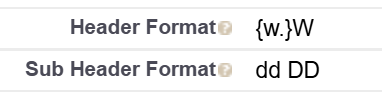

If you are upgrading from an older release, you may need to add the Header Format and Sub Header Format to the View Preset Page Layout.
More information can be found here.
View Resource
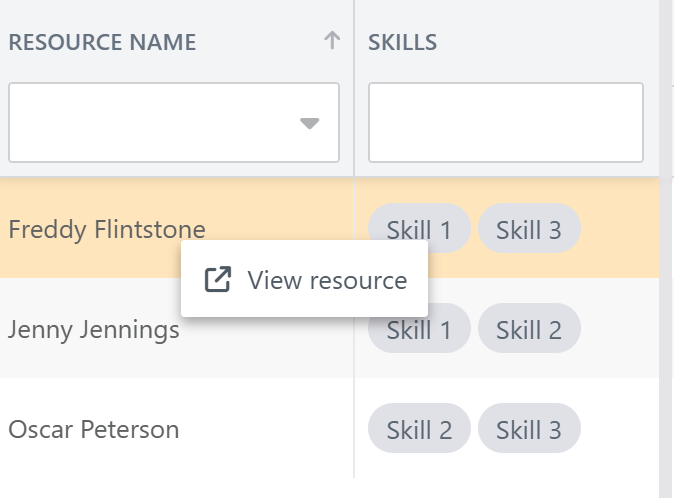
You can now right-click on a resource in the left pane to navigate directly to the resource record page. The behavior is similar to that for events.
Releases
24Planning v6.2 to v6.16